 Evlafam
Guide
First steps
From download to your first task, in eight short steps.
-
Download the app
Evlafam is free: download it from Google Play for Android or from the App Store for iPhone. You can also use it in a browser on your computer, with the same account: evlafam.com/evlafam.
-
Create your account
Tap Get started, then enter your full name, your email address, and your password twice. Under the password field you see what it still needs: enough length, a lower and an upper case letter, a number. The app also checks that the password hasn't appeared in a known data breach — a longer passphrase of your own is the safest. At the end, tick the box: with it you confirm that you are 13 or older (under 16, your parent has given consent) and that you accept the terms. Then tap Register.
-
Confirm your email address
We send an email to the address you entered. Open it and click the link inside — after that you can sign in. If it doesn't arrive, check your spam folder too, or ask for the email again.
-
Sign in
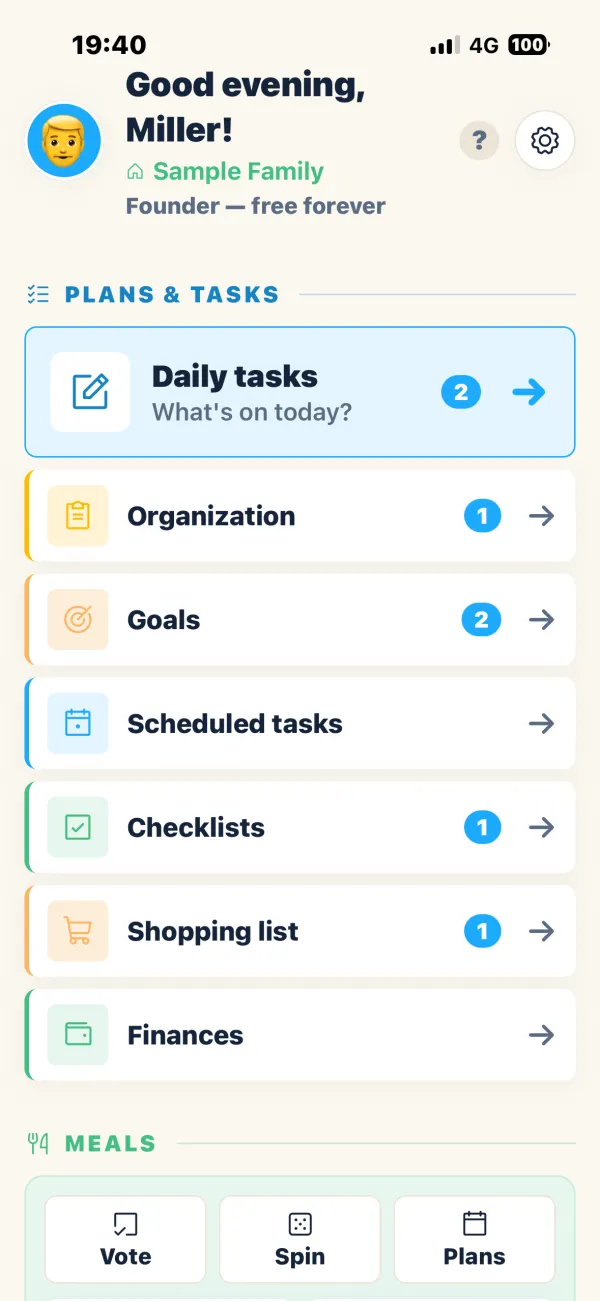
You sign in with your email address and password. A few short intro pages follow; Skip takes you to the last one. There you decide whether you want notifications. Then My space opens and the app greets you by name.
-
Get to know the home screen
It has three parts: Plans & tasks (Daily tasks, Organization, Goals, Scheduled tasks, Checklists, Shopping list, Finances), Meals (Vote, Roulette, Plans, Recipes, Meal pool) and Connections (Daily Spark, Get to know, Games, Group, plus the How to use guide and Send feedback to the developers). Every main screen has a question mark in the top right corner: tap it for a short explanation of what you'll find there.
-
Add your first task
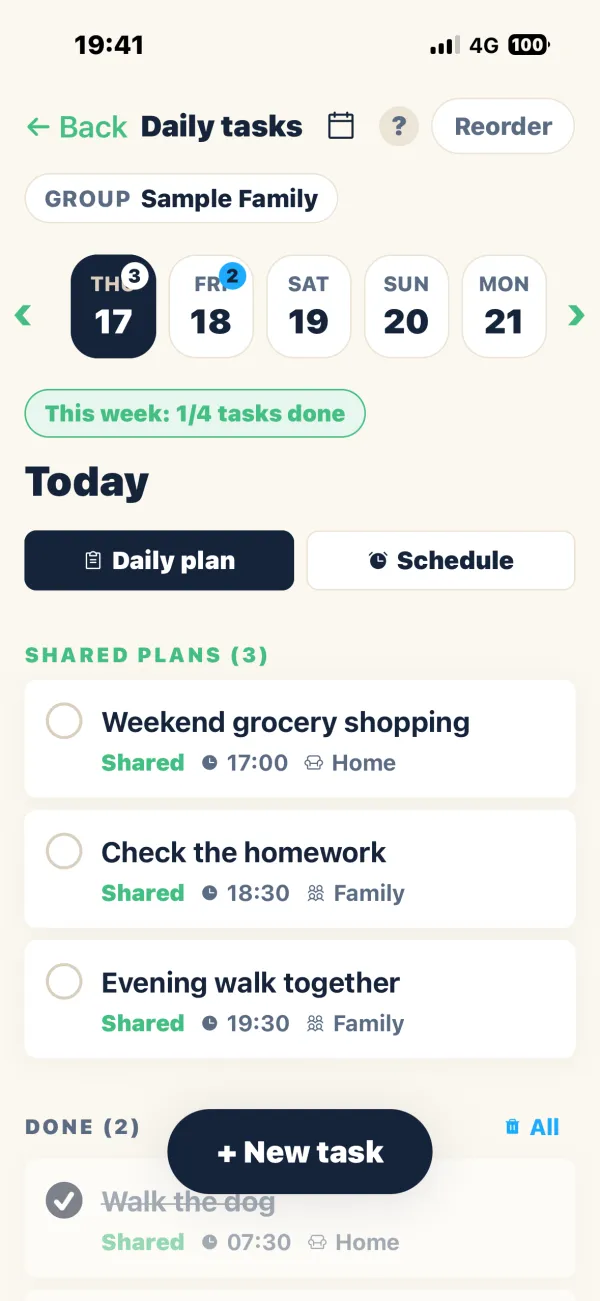
Open Daily tasks and tap New task. Type in what needs to be done and save it. If you give it a time too, it goes into the Schedule, and you can ask for a notification as well.
-
If you'd like to use it with others
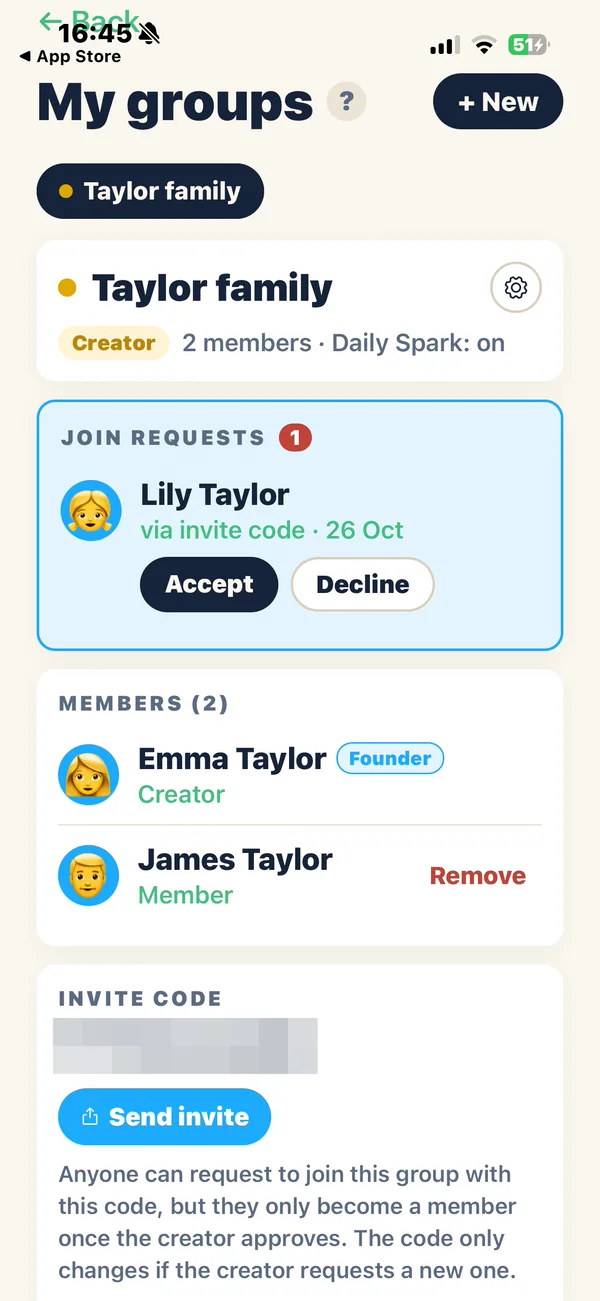
On the Group screen, create a group (for example Family or Friends) and send its invite code — in person, on WhatsApp, Messenger or by email. Whoever applies with the code becomes a member of the group once you approve them. Joining requires an Evlafam account and Pro. At the top of every screen you see which group you're in right now: whatever you share, the members of that group can see.
-
Make it yours
In the top right corner, under the settings icon, you can choose a language (Hungarian, English, Spanish), turn notifications on or off, and set the app to lock after inactivity — so if your phone is left open, nobody else can look in.
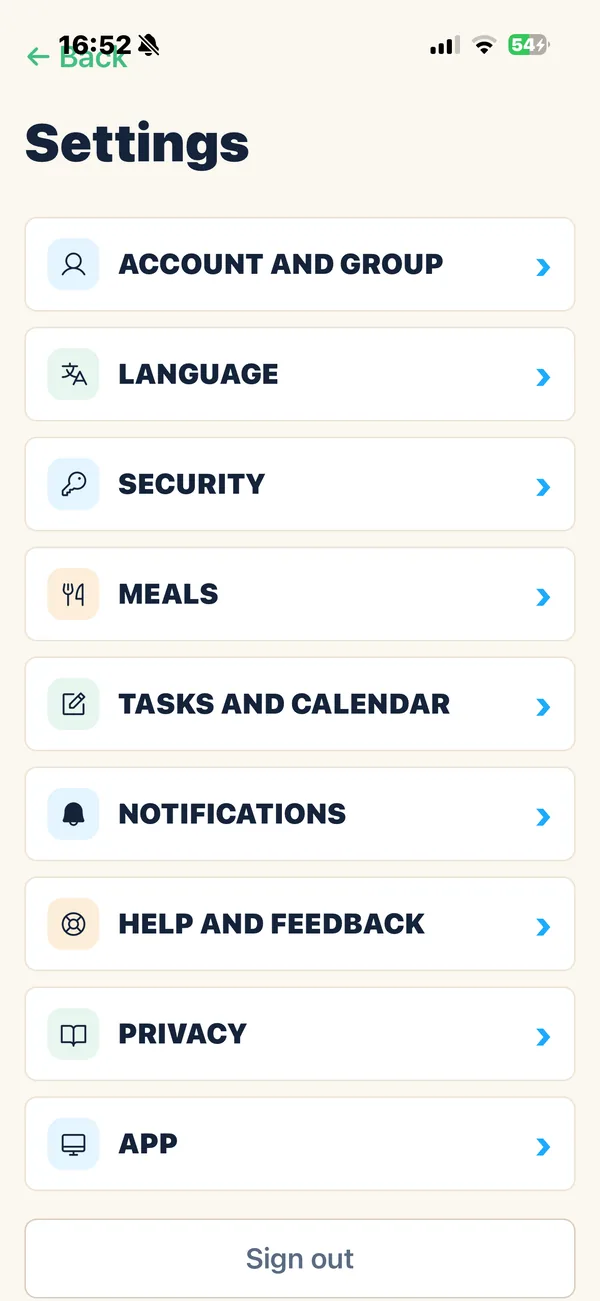
If you get stuck, you can write to us in the app under Settings → Help and feedback, or here, on the Contact page.